





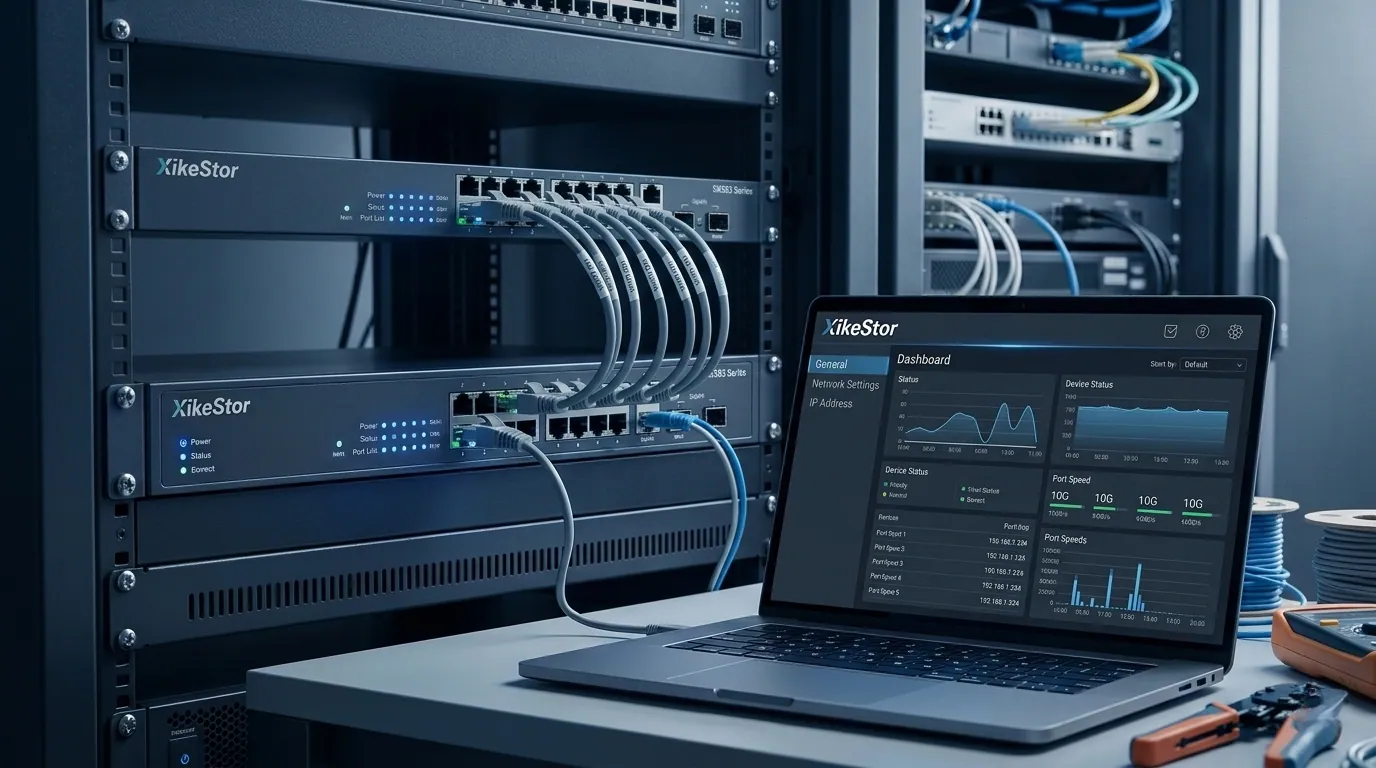
Before we start:
- If you have no specific functional requirements, XikeStor switches are plug-and-play.
- To access the Web UI, your computer must be in the same subnet as the switch.
- Default Management IP: 192.168.10.12
1Preparation & PC IP Settings
Connect your switch to power. Use an Ethernet cable to connect your PC to any port on the switch (Note: Do not use the Console port for Web UI access).
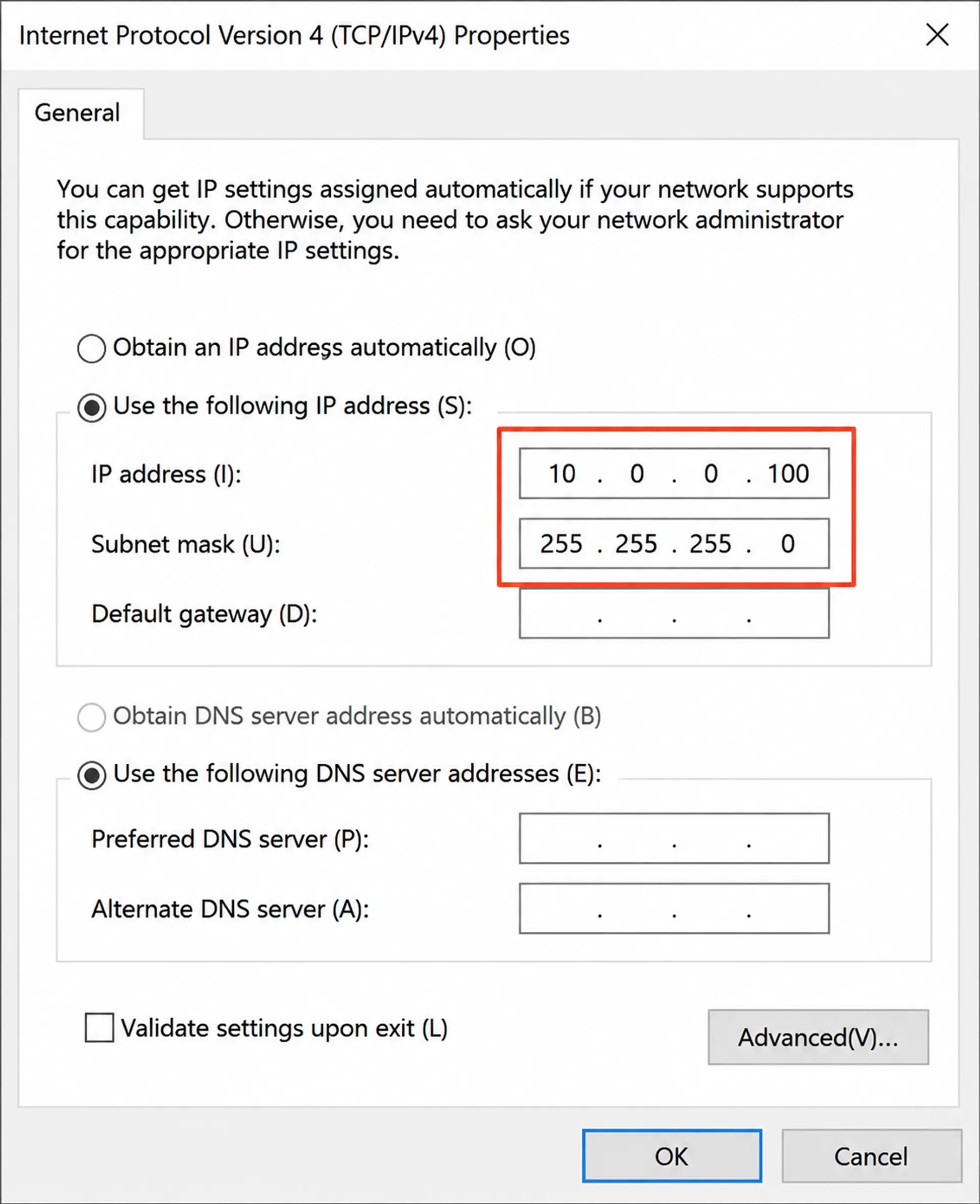
Modify your computer's IP address to 192.168.10.X (X can be any number from 1-254, except 12), with Subnet Mask 255.255.255.0.
Instructions for Windows:
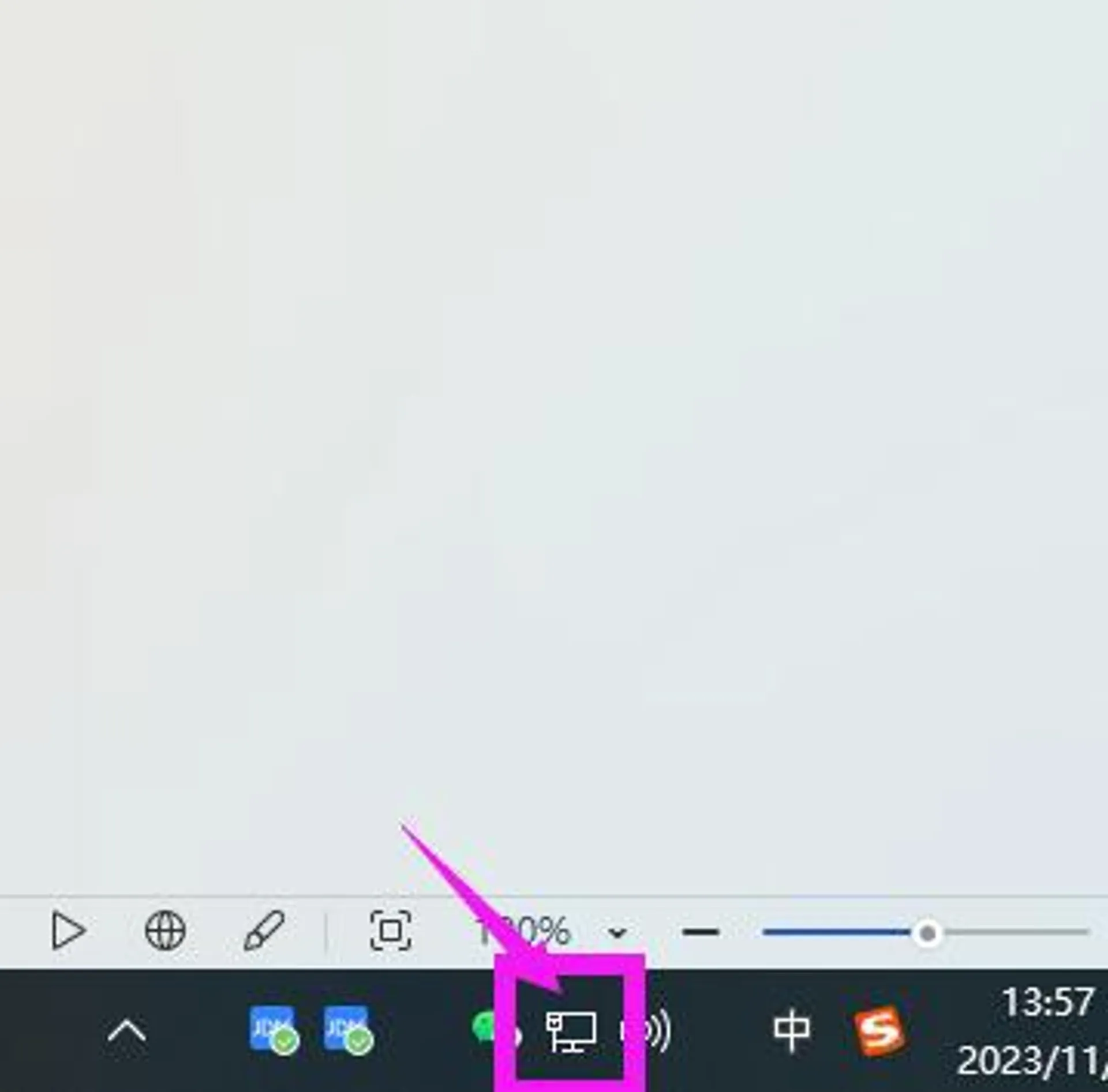
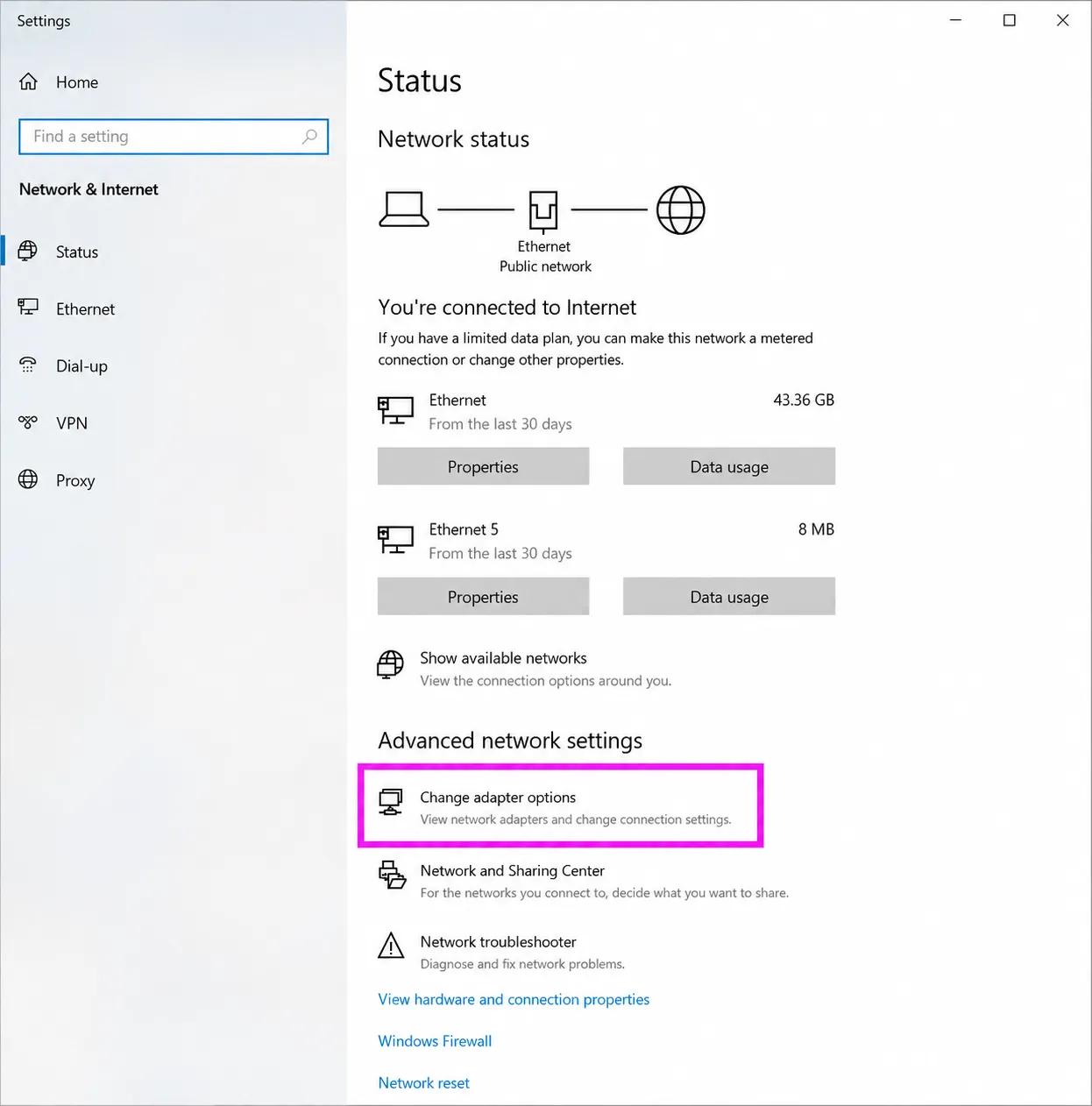
Right-click the Network icon in the taskbar > Open "Network & Internet Settings" > "Change adapter options".
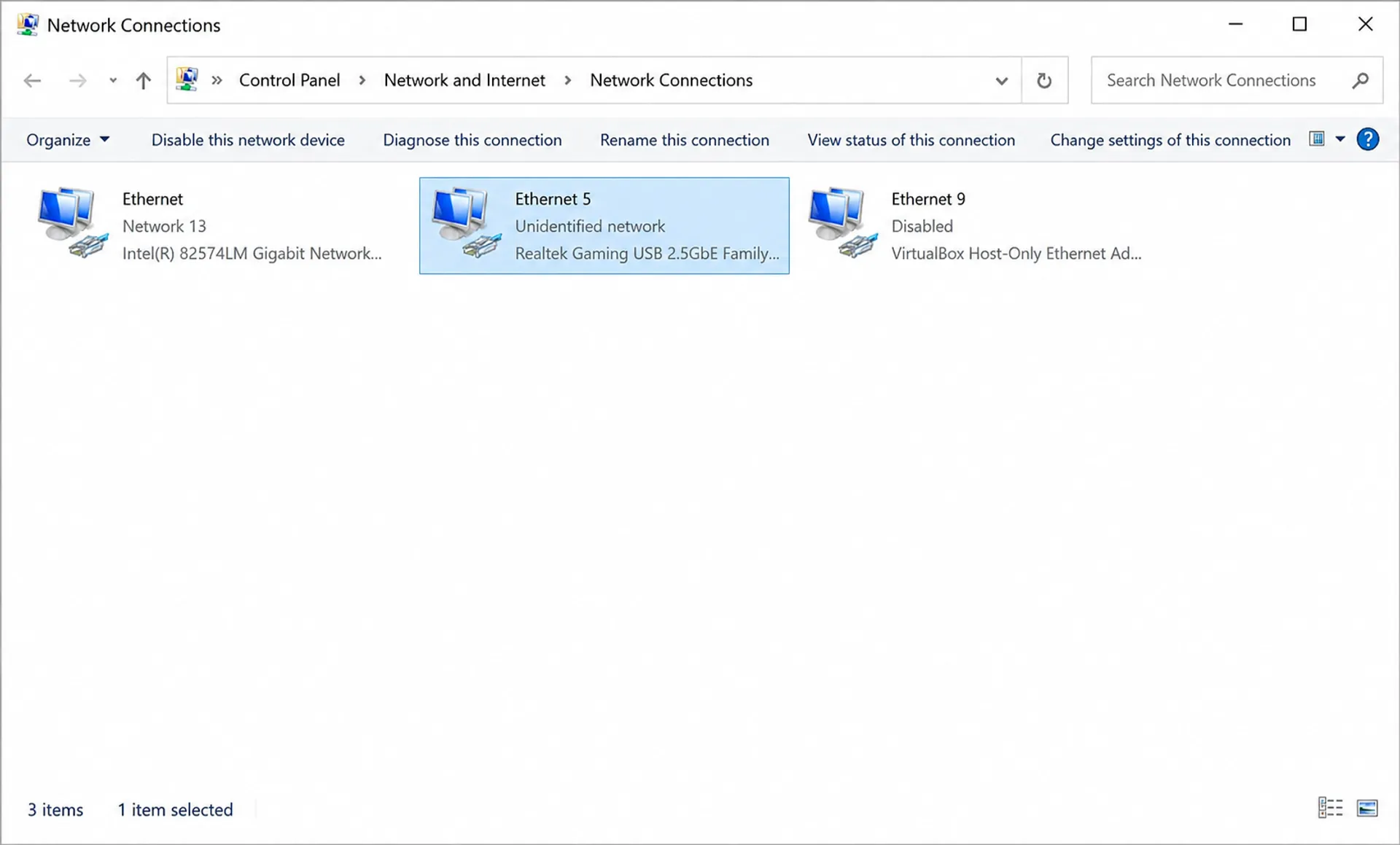
Right-click the connected port > Properties > Double-click "Internet Protocol Version 4 (TCP/IPv4)".
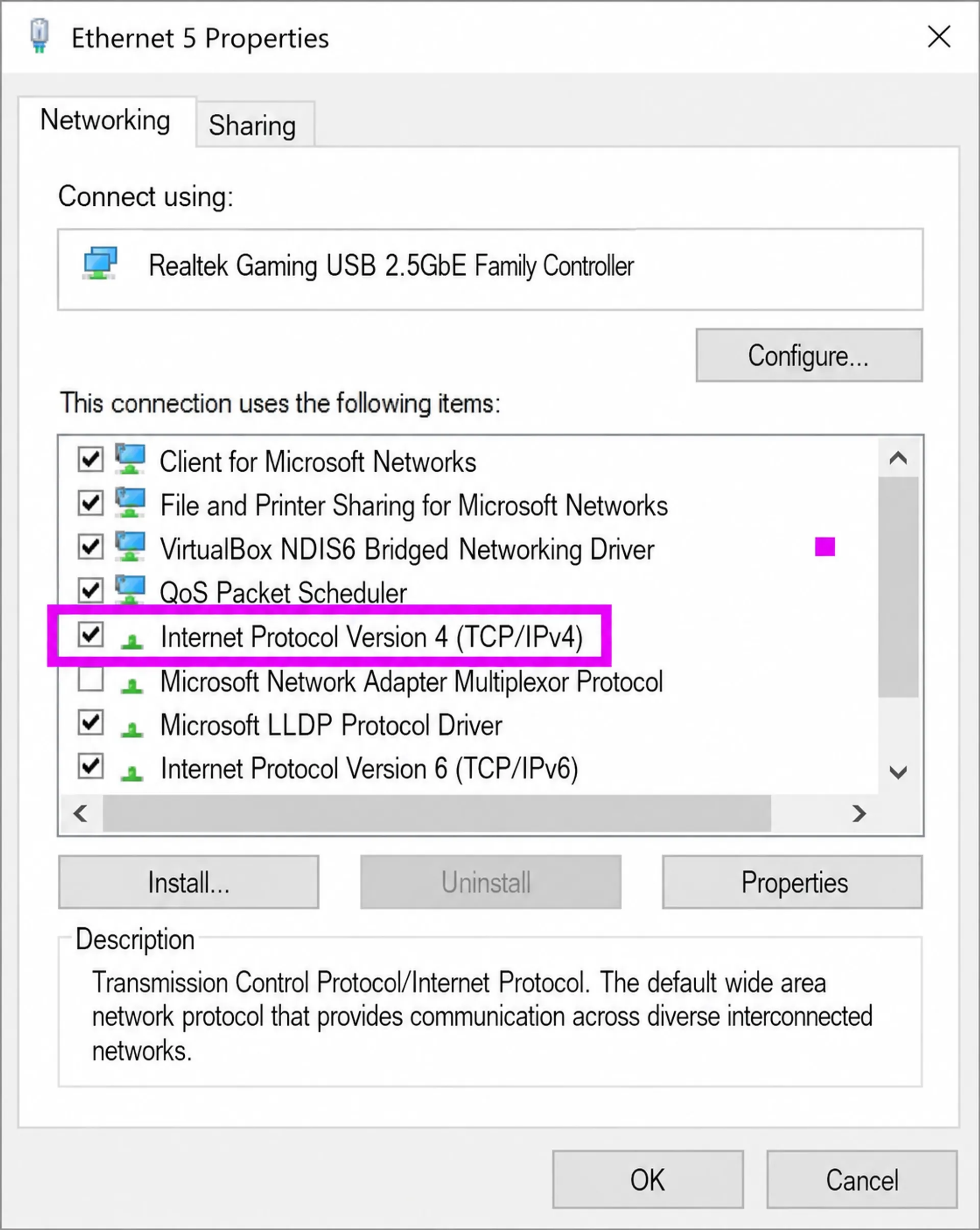
Enter the static IP and Save.
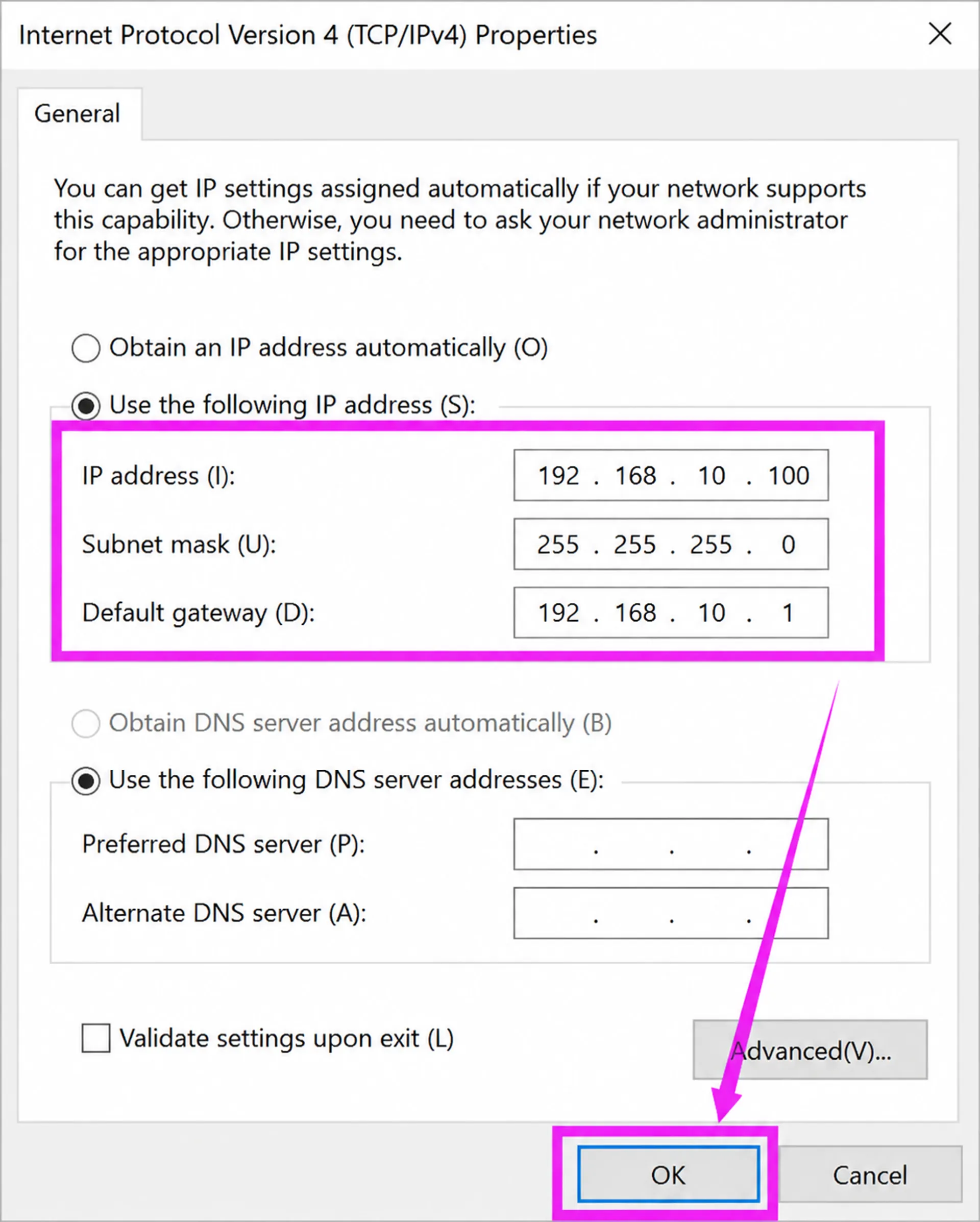
2Login to Web Management Interface
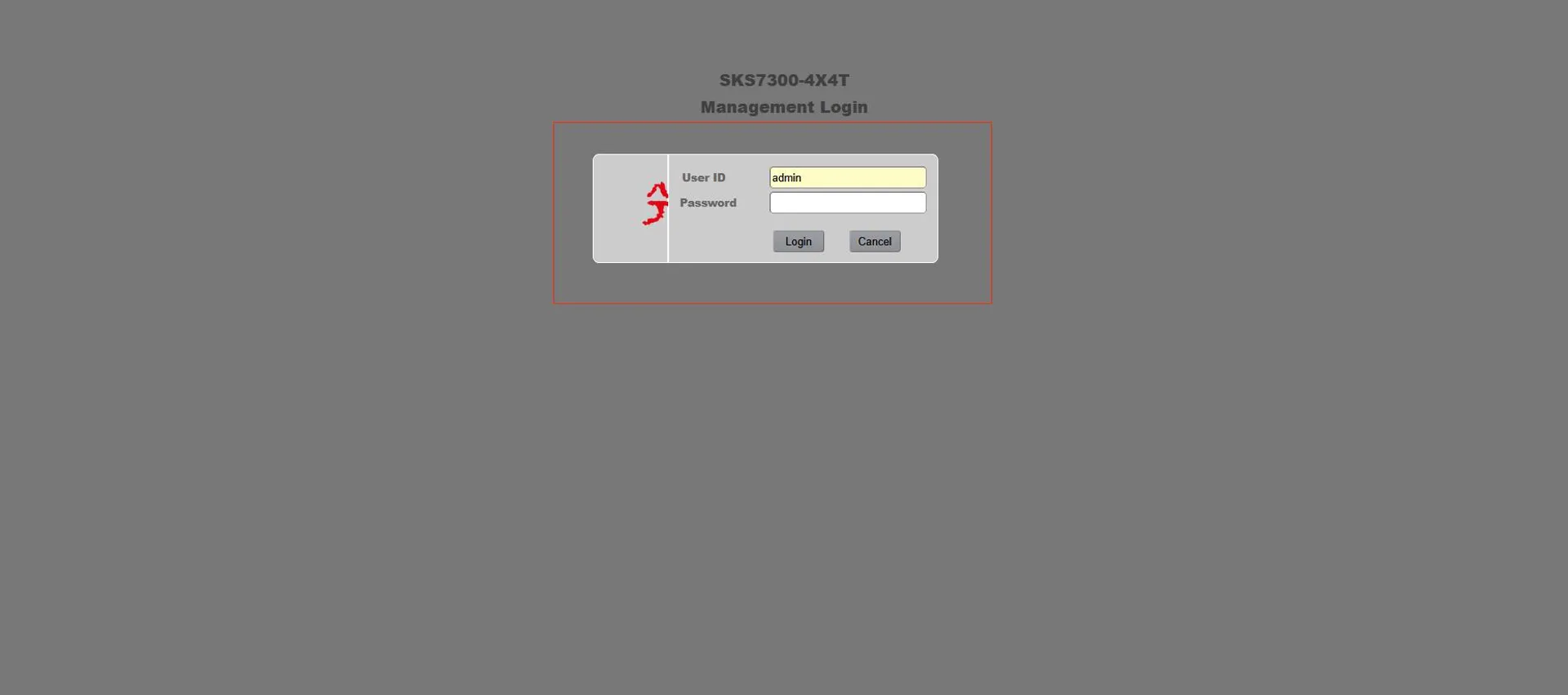
Open your browser and enter 192.168.10.12 in the address bar. Use the default credentials:
- Username: admin
- Password: admin (or leave blank if default)
SKS32 Series (Smart Managed)
-
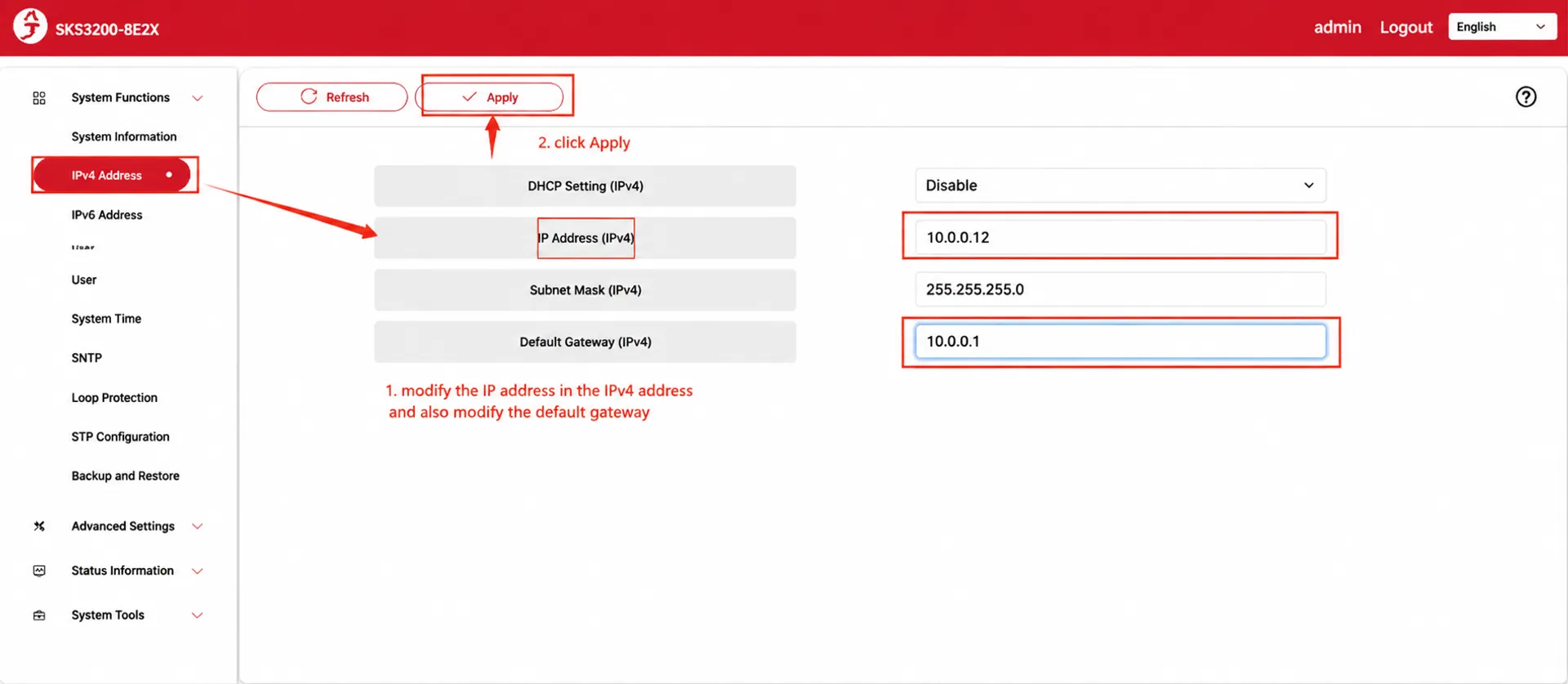
Go to System Functions > IPv4 Address. Modify the IP address and default gateway. Click Apply.
-
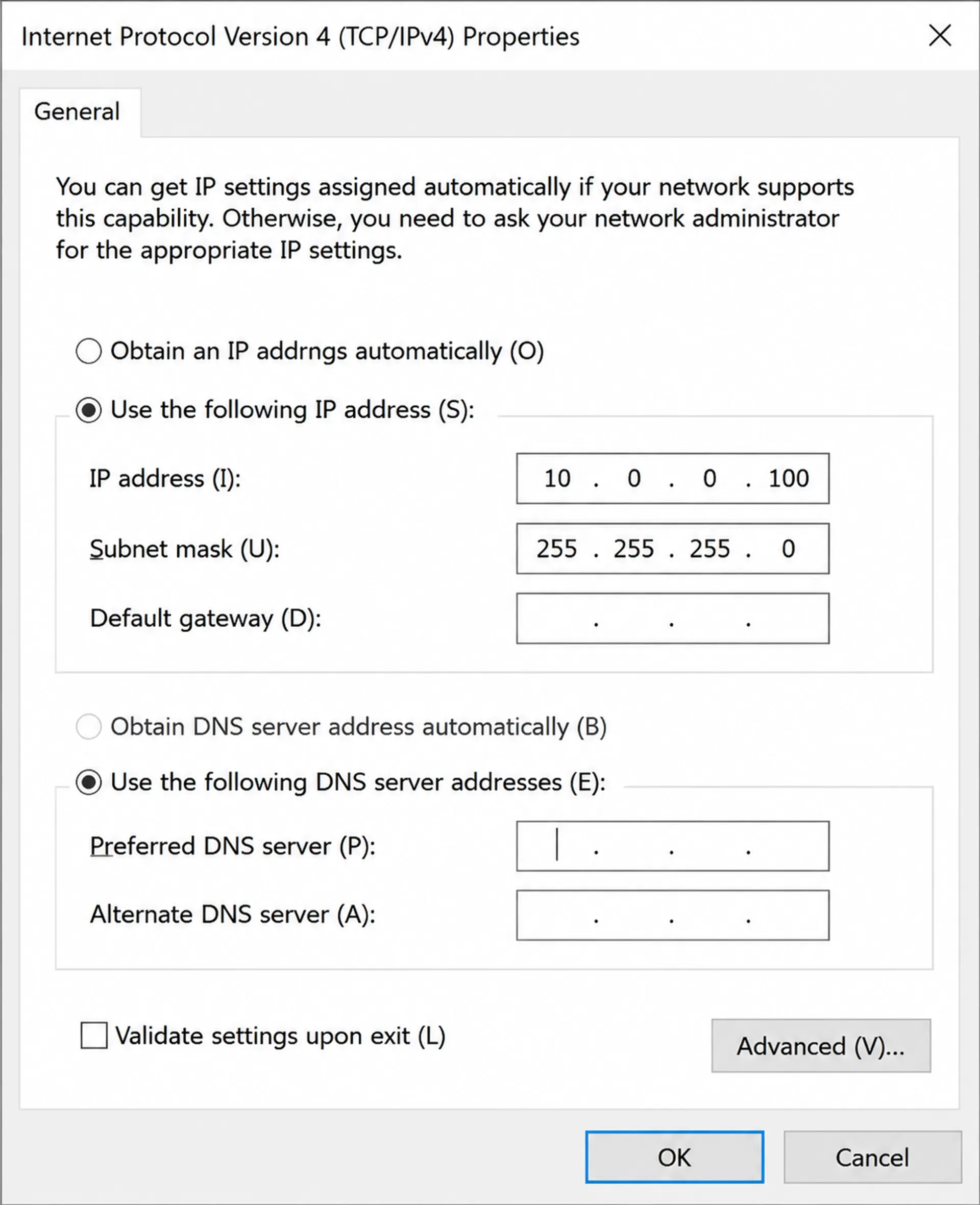
Re-configure your computer's IP to match the new subnet (or set to DHCP if connected to a router).
-
Enter the new IP address in the browser to re-login.
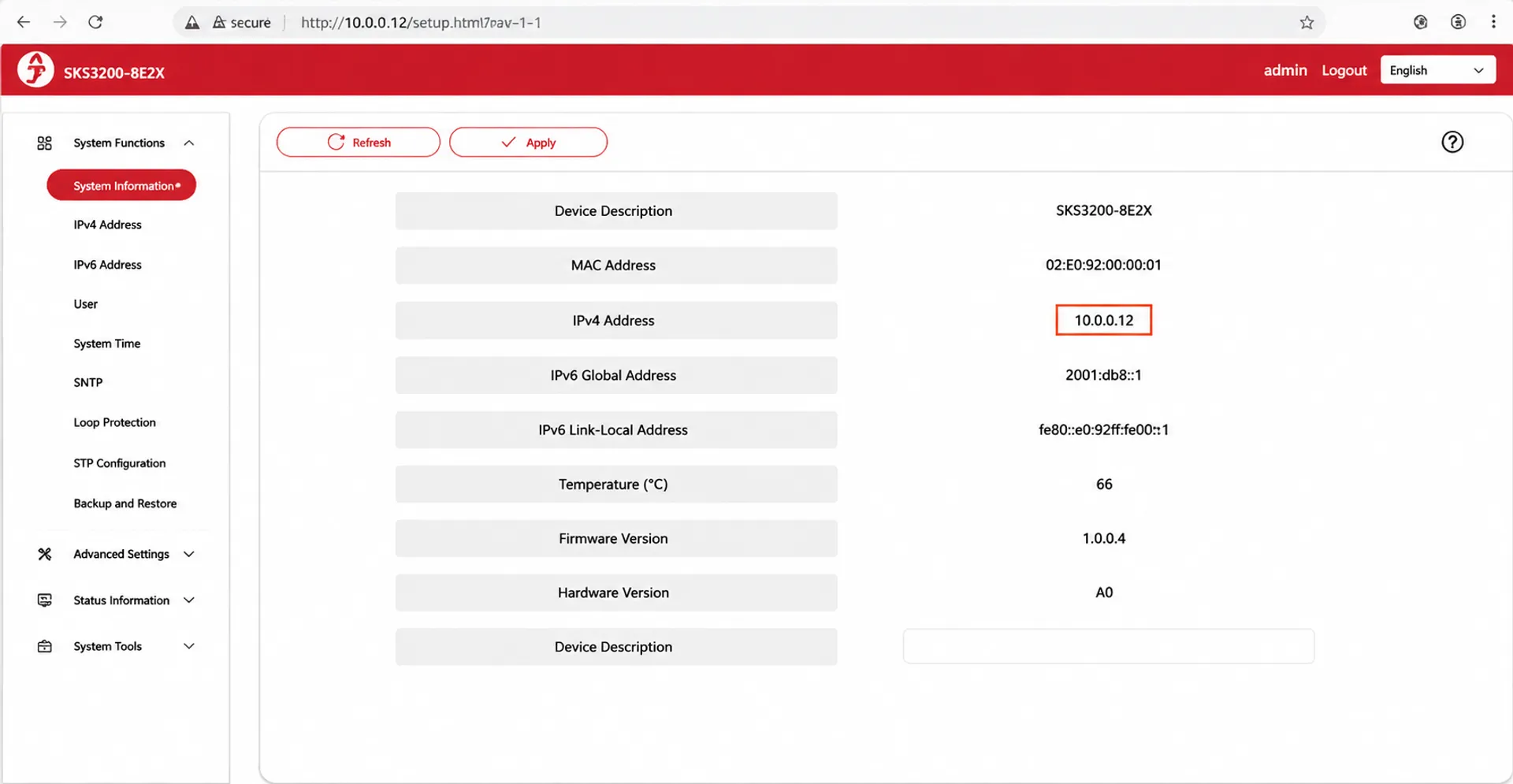
Note for SKS32: No matter which VLAN a port belongs to, you can access the management interface via the new IP. However, Bridge VLAN settings require logging in from Bridge 0.
SKS73 Series (L3 Managed)
-
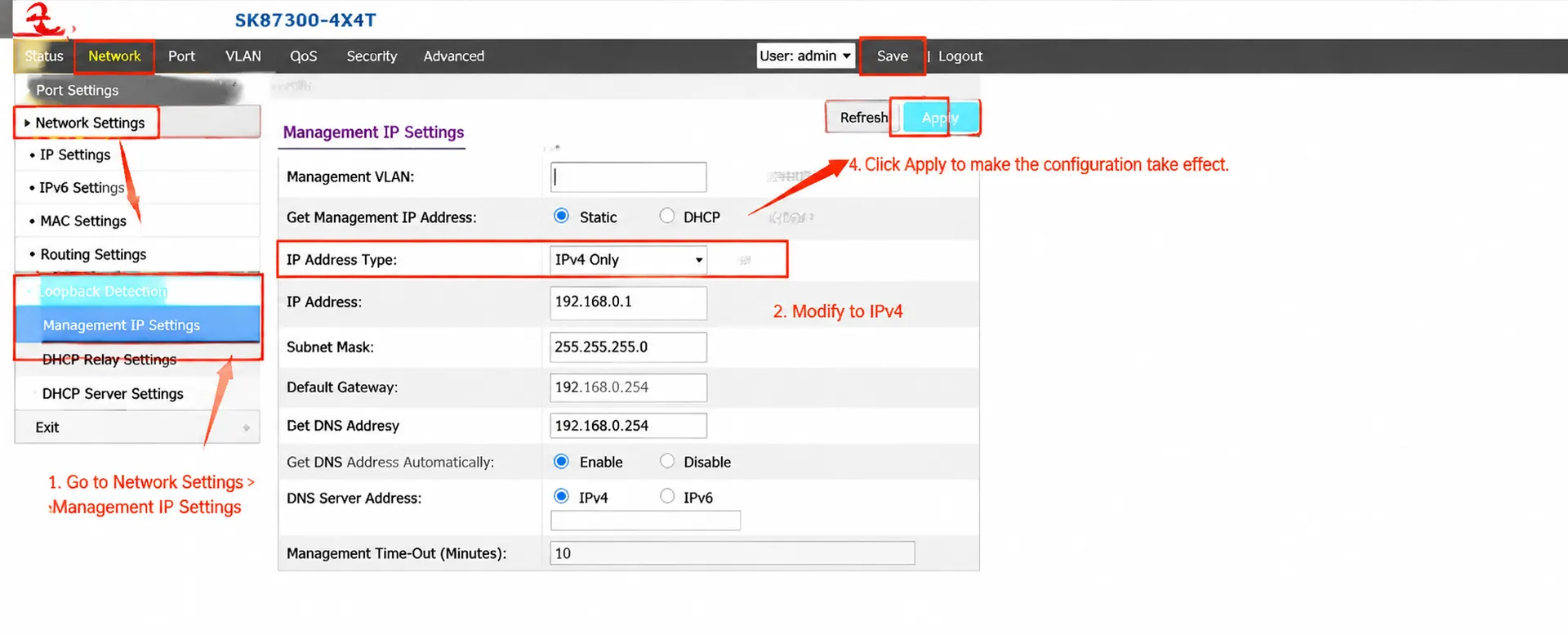
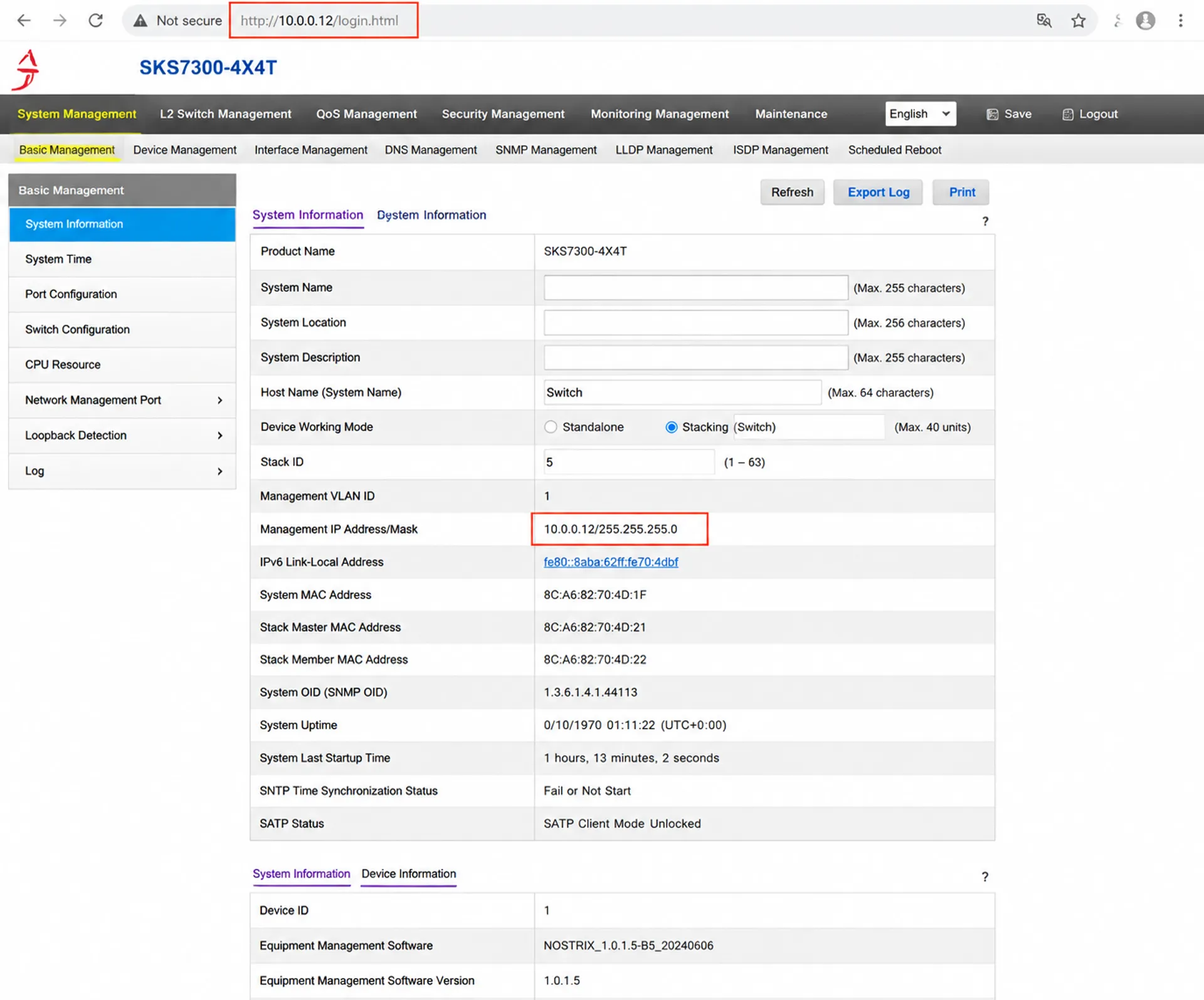
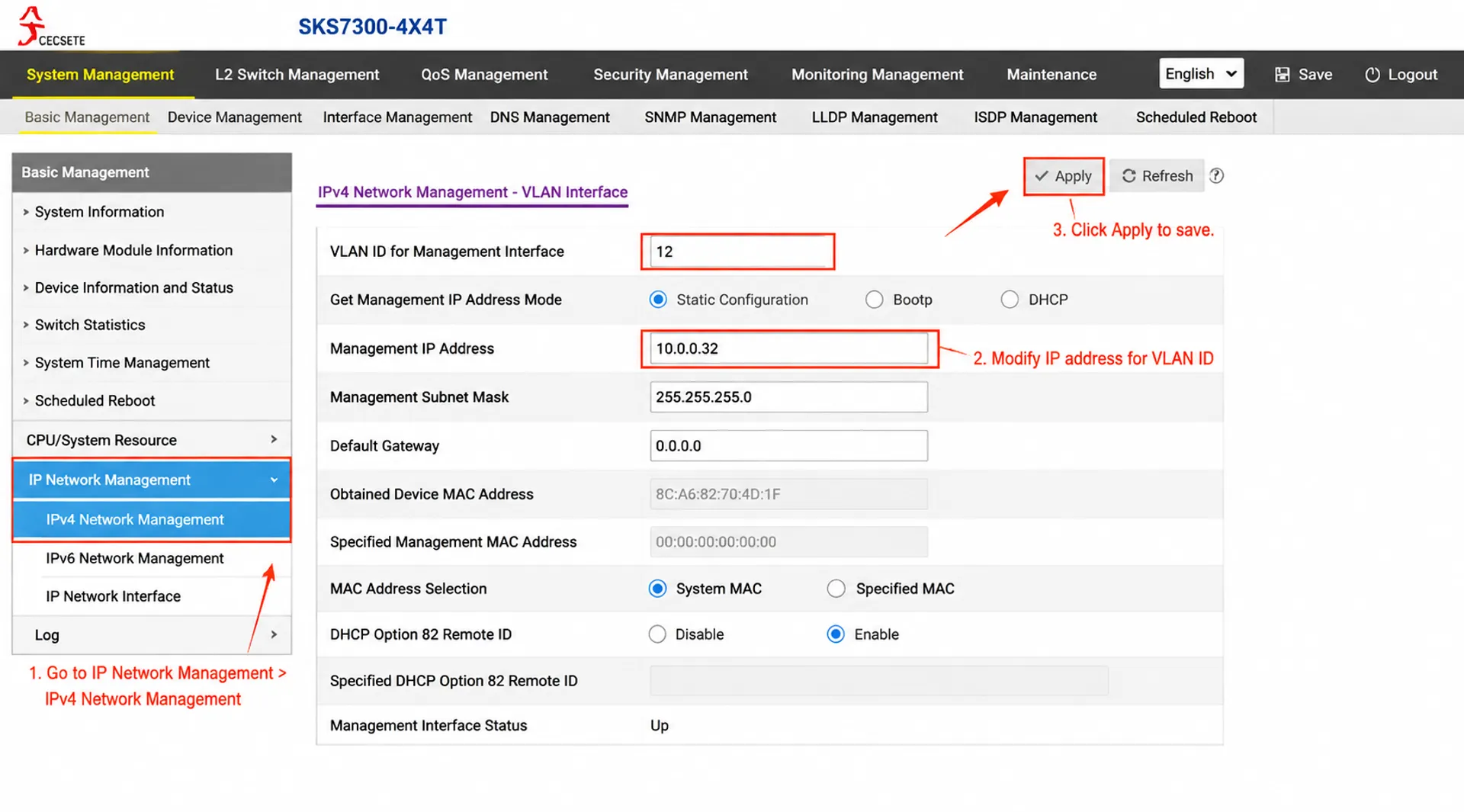
Navigate to System Management > Basic Management > Network Interface > IPv4 Interface. Modify the IP, then click Apply and Save.
-
-
Login using the new IP address.
VLAN Management Tip:
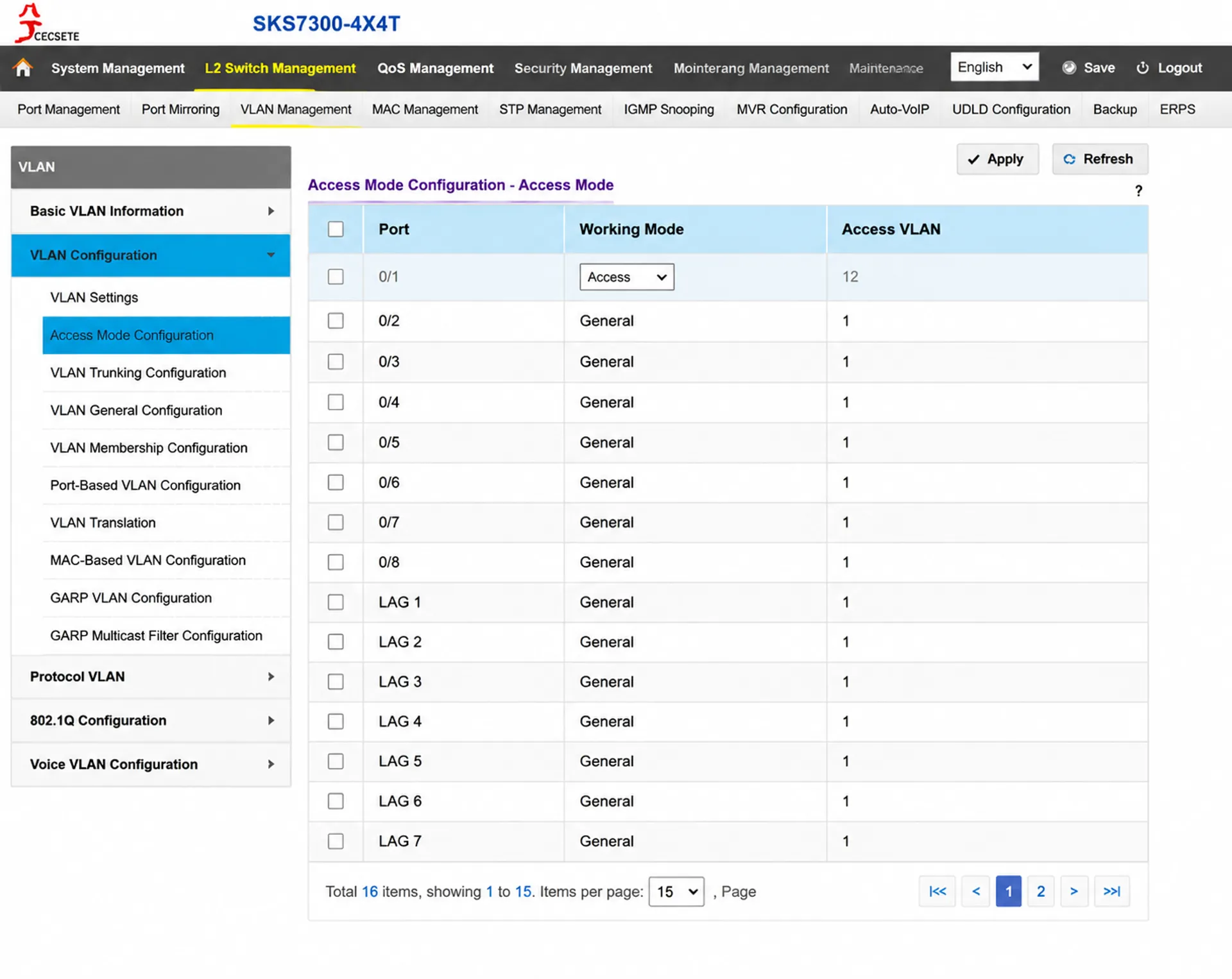
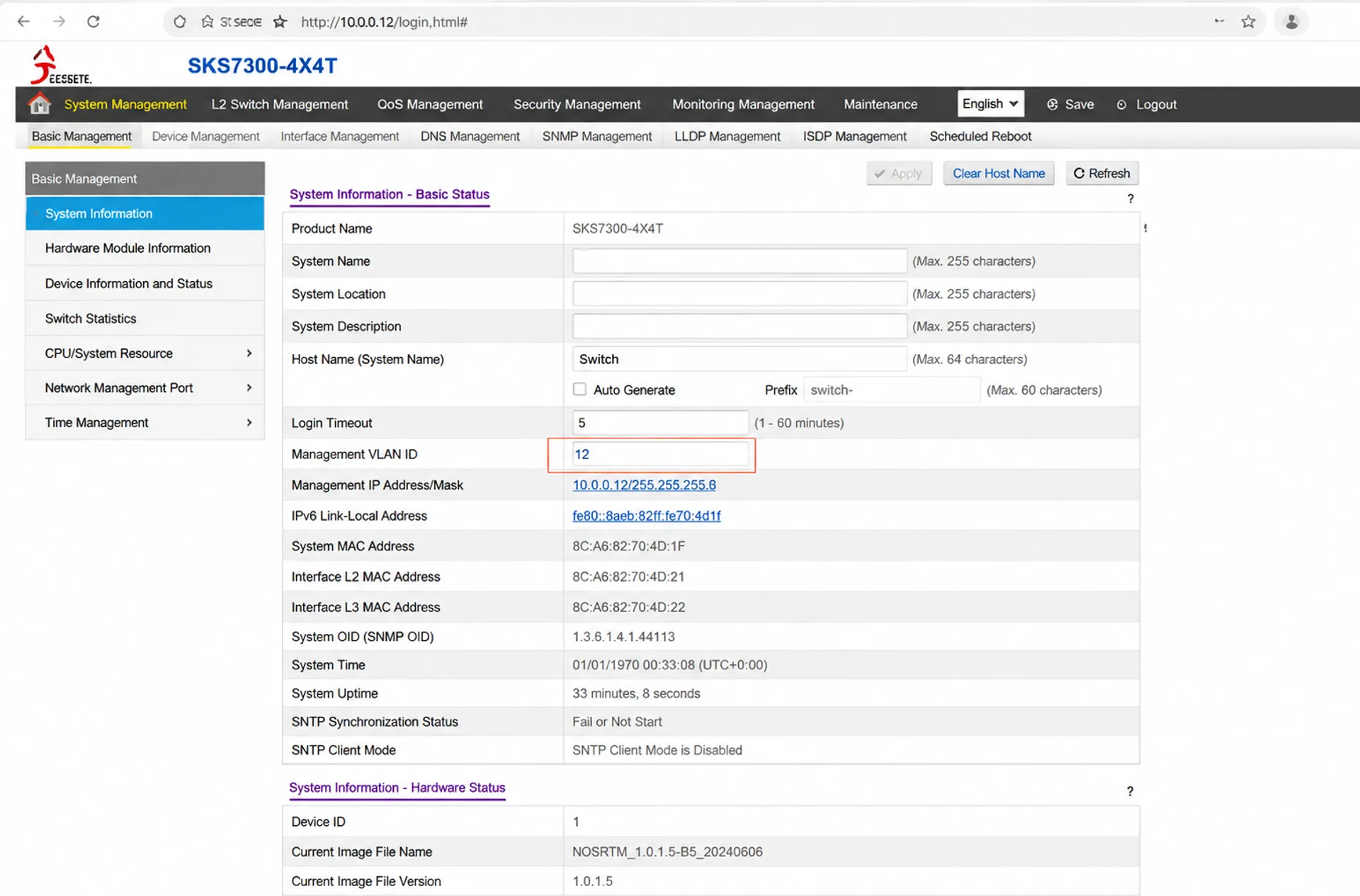
By default, the management interface is on VLAN 1. If you want to manage the switch from a different VLAN (e.g., VLAN 12):
- Assign the port to VLAN 12.
- Change the login interface to VLAN ID 12.
- Set PC to Auto-IP and access via Port 1.
SKS83 Series (L2 Managed)
Login to Web UI > Click Configuration > IP & Routing > VLAN IP Configuration. You can choose to create a new VLAN or modify VLAN 1.
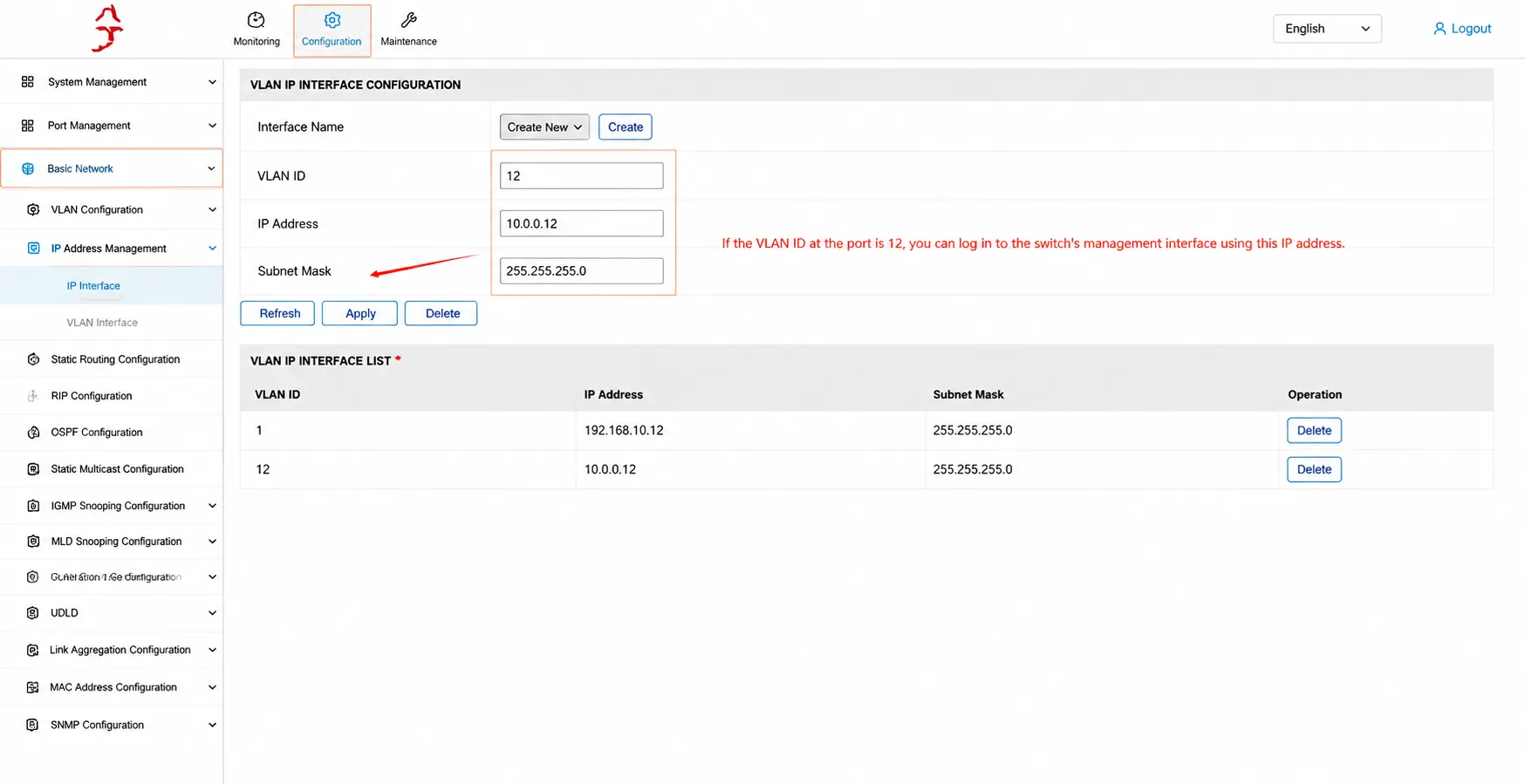
Different VLANs can use different IP addresses for login. For example, VLAN 1 can use 192.168.10.12 while VLAN 12 uses 10.0.0.12.
I recently purchased the xikestor SKS8300-8T switch, from your download center I downloaded the manual for this switch but that manual is for an optical switch and does not look in any way as the settings in my switch, can you have a look at that and email me the right manual so I can make the right settings
I also want to know what I can do with the console port and the usb to rj45 cable
Thank you
The configuration and management functions of the SKS8300-8T are the same as those shown in the manual. Although the manual uses an optical switch as an example, the software interface and configuration options are identical. The main difference is only the hardware ports (SFP fiber ports vs. RJ45 copper ports).
Regarding the console port, it can be used for local management, configuration, and troubleshooting of the switch through the USB-to-RJ45 console cable and a terminal application on your PC.
If there is a specific setting you would like to configure, please let us know and we will be happy to assist.
Hi
The download zone doesn’t show any downloads like firmware… is there any site where to check the last firmware version of your products, SKS3200-8E2X in particular.
Thanks
Hi,
Thank you for your comment, and apologies for the delayed response.
The issue with our Download Center has now been resolved, and firmware downloads are available again.
You can now find the latest firmware, user manuals, and other resources in our Download Center. If you’re looking for the latest firmware for the SKS3200-8E2X and have any questions about the correct version for your hardware revision, please let us know or contact our support team—we’ll be happy to help.
Thank you for your patience and for your support of XikeStor!